


Keep contractors, crews and site records in one place
For grid and utility field work. Invite contractor companies, find people by job type, share site instructions and keep a record of every job.
Sound familiar?
"Are their documents up to date?"
Each contractor sends licences and insurance a different way, and tracking expiry dates is someone's side job.
"Which contractor has that job?"
Work is spread across companies and crews, and getting a straight answer takes a round of phone calls.
"Where's the record for that site?"
Someone needs to know who was there, when and what they did, and the answers are in several inboxes.
One job in OpSpot, start to finish
Here's how an example job runs: a six-week works program across several field sites, delivered through your own crews and contractor companies.
1. Invite your contractor companies
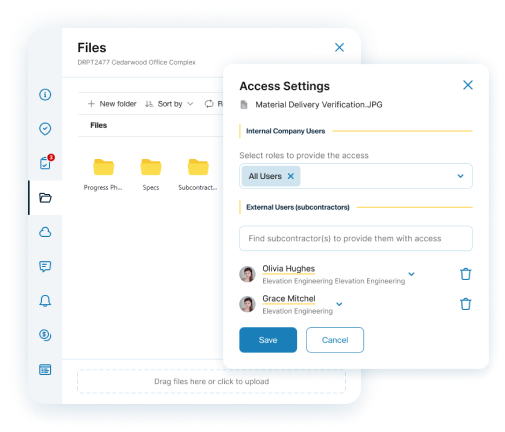
Invite each contractor by ABN, manager email or OpSpot ID. They're their own company in OpSpot, with their own team, and you choose what they can see in yours.
- Choose which stages and statuses they see, and the role their users get
- They choose which of their people you can see
- They only see Shareable files, on bookings they're assigned to
2. Lay out the program
Create a project for each site and book each stage on the Planner. If you run more than one company, the Scheduler can show their projects and bookings together.
- Gantt view with filters by project, job type and attendee
- Multi-day bookings with different people on each day
- Up to 20 of your companies combined in the Scheduler
3. Find people by job type
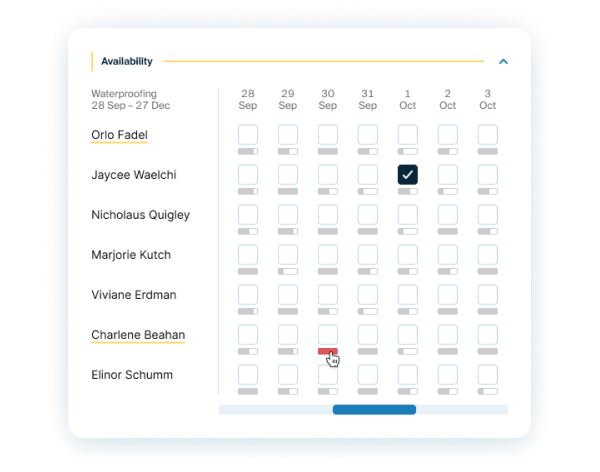
Choose a job type and see every staff member and contractor who does that work, four weeks out. If another OpSpot company has booked them, you see that they're busy, with no details.
- Required licences and insurance set per job type
- Expired documents flagged on the subcontractor list
- Expiry reminders, 15 days before by default
4. Brief them before they start
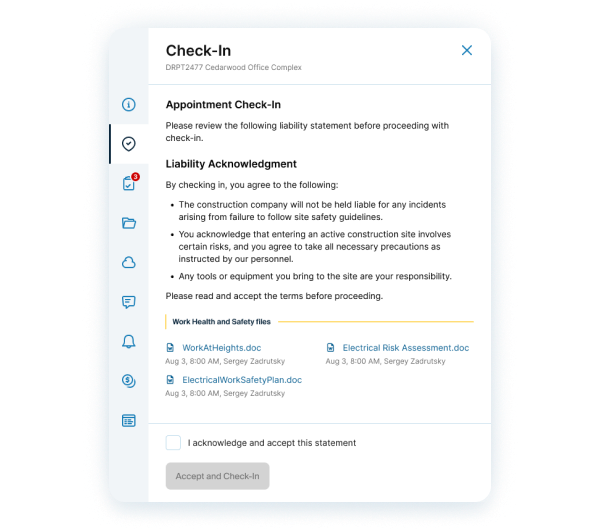
Add your site instructions to the booking. Each worker reads them and accepts when they check in, with time, photos and GPS recorded if you turn GPS on.
- Check-in instructions from your own templates
- Safety files on the booking for the people assigned
- Visitors check in as guests from the project QR code
5. Keep proof from every job
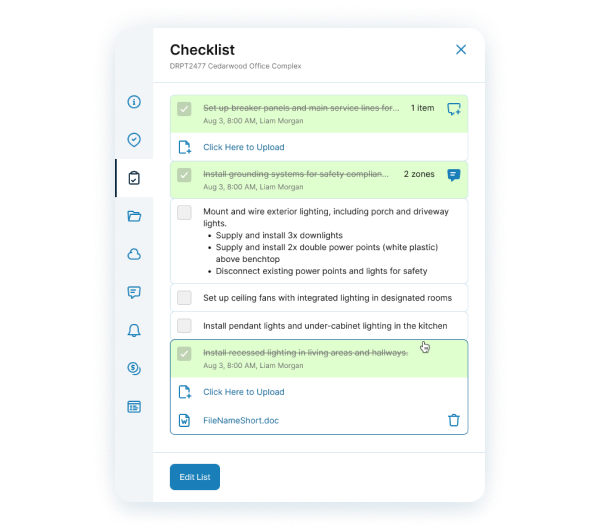
Checklist items can require a photo or file before they can be ticked, so evidence stays with the job, not on someone's phone.
- Every item records who completed it and when
- Checklist templates so each crew works from the same list
- A notification when the last item on a booking is ticked
6. Keep the record
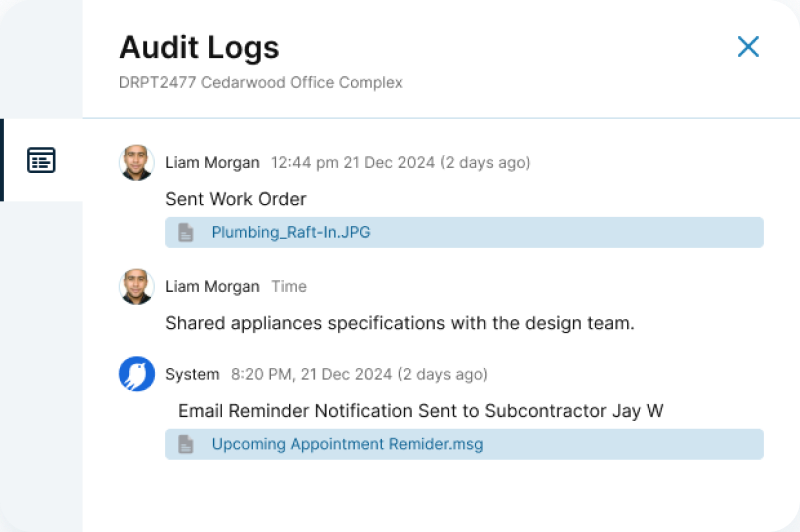
Bookings carry an audit log and projects carry audit records, so you can see who sent what and when. Approve contractor payments line by line at cost.
- Audit logs on bookings and project audit records
- Custom roles for who can see and change what
- Contractor payments: pending, approved, rejected and paid
What field operations teams use most, and how it works

Licences and insurance
Set what each job type requires, and see what has expired across your contractors. NSW licences are checked against the Fair Trading register every week.
Read the guide
See who's free before you book
Check crews and contractors by job type, four weeks ahead, with a load bar for each day.
Read the guide
Calendar, Planner and Gantt
See whole programs on a Gantt chart and run the week from the calendar, with crews and contractors together.
Read the guide
Checklists, photo proof and QR check-ins
Require a photo before an item can be ticked, and see everyone who has checked in on the project.
Read the guide
Work orders and contractor payments
Send work orders at cost, then approve completed lines one at a time.
Read the guide
The right files for the right people
Share plans on the bookings they're for, and keep contracts and pricing in Sensitive files that never reach other companies.
Read the guideSee it working
Short walkthroughs of the real product.
The Planner
See your jobs and crews on a Gantt chart.
The Calendar
Run the week and move bookings as things change.
Templates and guides for your next job
Questions field operations teams ask
How do subcontractors join?
Invite them by ABN, manager email or OpSpot ID. Each subcontractor is their own company in OpSpot, with their own team. They accept your invitation and choose which of their people you can see.
Can contractors see each other's files?
Contractors only see Shareable files, on bookings they're assigned to. Sensitive files stay inside your company, and you control access by role.
Can I set which licences and insurance a job type needs?
Yes. You mark which job types need a licence or insurance, and subcontractors see what you require. OpSpot keeps the documents and dates for each person and emails a reminder before they expire, 15 days before by default.
Can we see work across several companies?
Yes. The Scheduler and Payment Scheduler can combine up to 20 companies you belong to, and only companies you belong to are loaded.
Does it work on a phone?
Yes. OpSpot runs in the browser and installs to your phone's home screen, with a calendar layout built for phones and push notifications.
