


From showroom enquiry to final install, all in one place
For kitchen and joinery businesses. Track every enquiry by showroom, quote by zone, book fitters, trades and deliveries, and keep proof from each install.
Sound familiar?
"Did anyone call them back?"
Enquiries come in at the showroom, by phone and online. Follow-up depends on who took the call and whether they remembered.
"Which benchtop did they pick?"
The client changed their mind twice. The latest choice and price are somewhere in an email, and the order needs to go in today.
"Stone's here, but the cabinets aren't in."
Fitter, plumber, electrician, stonemason and tiler all follow each other. One delay moves everyone, and someone hears about it last.
One job in OpSpot, start to finish
Here's how an example job runs: a kitchen renovation, from the first showroom visit to the final fit-off.
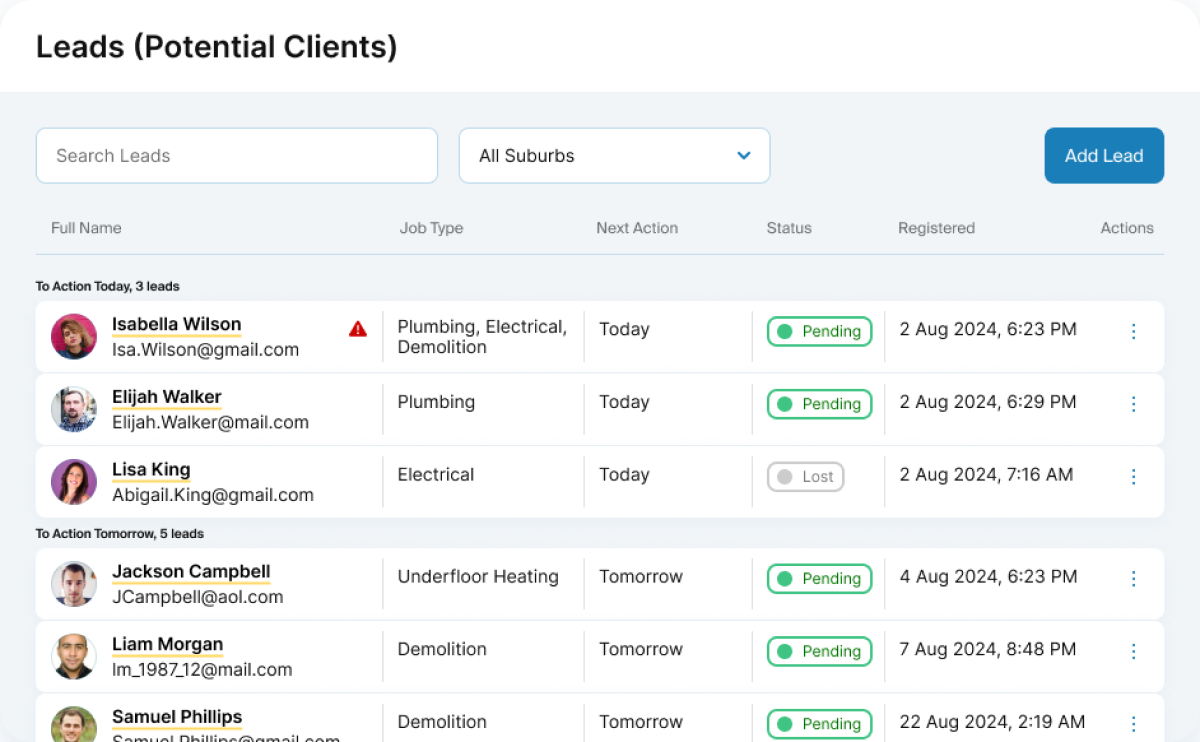
1. The enquiry comes in at the showroom
A couple drops in with photos and a rough budget. Their details go on a lead sheet under that showroom, and when they sign, the lead becomes the job with nothing retyped.
- Showroom, lead source, estimator and budget on one record
- Follow-up actions with due dates and reminder emails
- Lost lead reports by showroom, with the top reason
2. Quote it, then quote the changes
Split the scope into zones such as kitchen, butler's pantry and laundry, and build it from your own service and material catalogues. When they change the benchtop, generate the next quote and compare the two.
- Quantity, cost and margin on every line
- Numbered quotes on your own template, with your logo
- A variation PDF showing what was added, removed or changed, zone by zone
3. Lay out the install
Book each stage in order and see the whole job on the Planner, from check measure to fit-off. If the cabinets run late, move what follows and everyone can see the new dates.
- Gantt view across the whole job, with PDF export
- A read-only link for the homeowner, with an optional expiry date
- Different people on each day of a multi-day booking
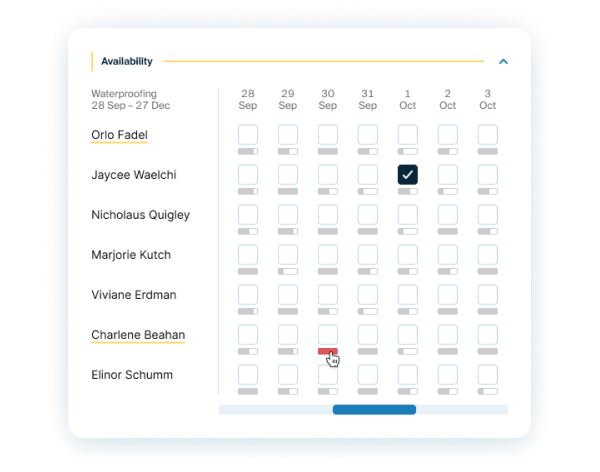
4. Book fitters, trades and deliveries
Need a plumber for the rough-in? Choose the job type and see every staff member and subcontractor who does that work, four weeks out, with a load bar for each day.
- Mark a booking as a Work Order or a Delivery Order
- Work orders built from your quoted labour lines, at cost, never your sell price
- Required licences and insurance set per job type, with expiry reminders
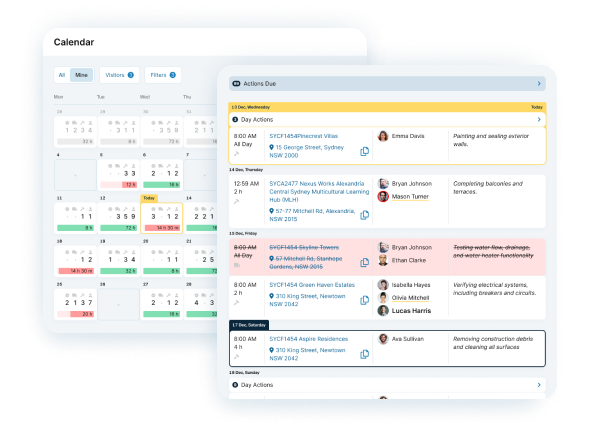
5. Keep the homeowner in the loop
Homeowners want to know who's coming and when. Booking reminders go out by email, so your team spends less time on the phone confirming dates.
- Reminders to the client, the workers and the project manager
- Sent in advance, on save or at a set time, with quiet hours
- Your own email templates
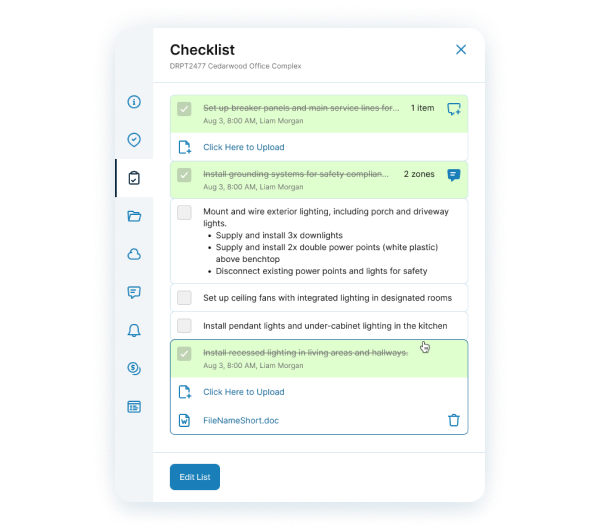
6. Sign off the install and track the money
Checklist items can require a photo or file before they can be ticked, so the finished install is on record. Then approve what you owe each subcontractor line by line.
- Every item records who completed it and when
- Subcontractor payments: pending, approved, rejected and paid
- Client deposits and stage payments: expected, invoice sent and paid
What kitchen and joinery businesses use most, and how it works

Enquiries that become jobs
Keep every enquiry on one record with its follow-ups, then turn it into the job when they sign, with nothing retyped.
Read the guide
Scope, quotes and variations
Build the scope by zone from your own price list, keep every quote version, and mark the final one with the signed document attached.
Read the guide
See who's free before you book
Check fitters and trades by job type, four weeks ahead, with a load bar for each day.
Read the guide
Calendar, Planner and Gantt
Run the week on the calendar, see whole jobs on the Planner, and share a read-only Gantt link with the homeowner.
Read the guide
Work orders and subcontractor payments
Send work orders at cost, then approve completed lines one at a time, so you know what you owe on each job.
Read the guide
Checklists and photo proof
Require a photo before an item can be ticked, and get notified when the last item on a booking is done.
Read the guideSee it working
Short walkthroughs of the real product.
The Planner
See your jobs and trades on a Gantt chart.
The Calendar
Run the week and move bookings as things change.
Templates and guides for your next job
Questions kitchen and joinery businesses ask
Can I track enquiries by showroom?
Yes. Add your offices and showrooms in settings and record each enquiry against one. Lost lead reports break down by showroom, with the top reason for losing the job.
Can I quote from my own prices?
Yes. Build your own service and material catalogues with costs and a default margin. Each quote is a numbered snapshot on your own template, and you can compare two versions and download a variation PDF.
Can homeowners follow the job?
Yes. Share a read-only Gantt link for their project, with an optional expiry date you can revoke, and send them booking reminders by email.
Can subcontractors see my margins?
No. Work orders show subcontractors the cost of their work, never your sell price or margin. They only see Shareable files, on bookings they're assigned to.
Does it work on a phone?
Yes. OpSpot runs in the browser and installs to your phone's home screen, with a calendar layout built for phones and push notifications.
