


Schedule every delivery alongside the job it's for
For supply and delivery businesses. Book delivery orders on one calendar, tell customers when you're coming, and keep a record of each arrival.
Sound familiar?
"When's it arriving?"
Customers call to chase a date, and whoever answers has to go and find out.
"Two drops, one driver."
Bookings are made in different places, and the clash shows up on the morning of the run.
"The site says it never came."
Without a record of who arrived and when, it's your word against theirs.
One job in OpSpot, start to finish
Here's how an example job runs: a week of scheduled deliveries to customers' sites.
1. Price it from your own catalogue
Keep what you sell in your Material and Service Catalogues, and build the quote with quantity, cost and margin on each line. If the order changes, generate the next quote and compare the two.
- Numbered quotes on your own template
- A variation PDF showing what changed
- Mark the final quote with the signed document attached
2. Book the delivery
Mark a booking as a Delivery Order, so it sits on the calendar with your other work. Regular drops can repeat on chosen weekdays between two dates.
- Work Order or Delivery Order on each booking, with a default you set
- Recurring bookings on the weekdays you choose
- Company API keys let another system read the calendar and create bookings
3. See who can take it
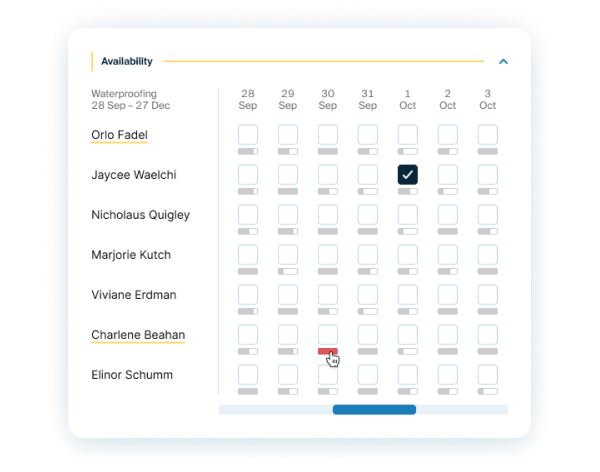
Choose a job type and see every staff member and subcontractor who does that work, four weeks out, with a load bar showing how full each day is.
- Red when a day is nearly full, "!" when overbooked
- Click a day for details, tick days to add the person
- Staff and subcontractors in the same view
4. Run the day from the calendar
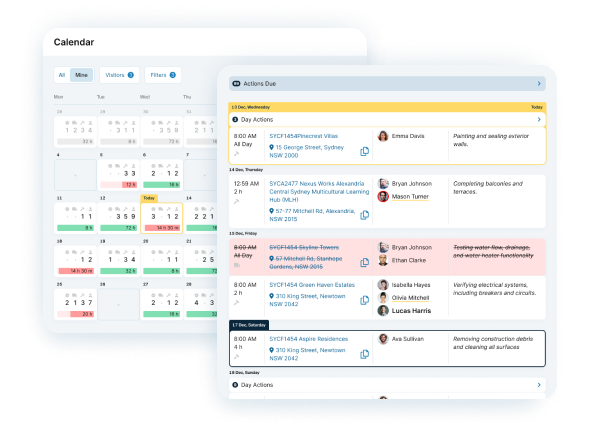
See every booking across the week, filter by person, and drag a single-day booking to a new date when plans change.
- Month and week views, all bookings or just yours
- Open the address in Maps from the project
- A layout built for phones
5. Tell the customer you're coming
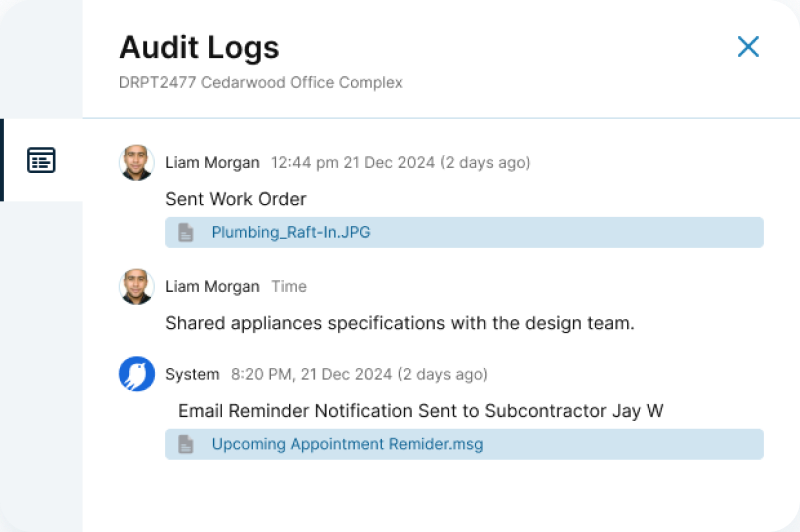
Booking reminders go out by email in advance or at a set time, so customers know the date without calling you. The booking's audit log shows what was sent and when.
- Reminders to the client, the workers and the project manager
- Quiet hours and your own email templates
- Audit logs on every booking
6. Keep proof of arrival
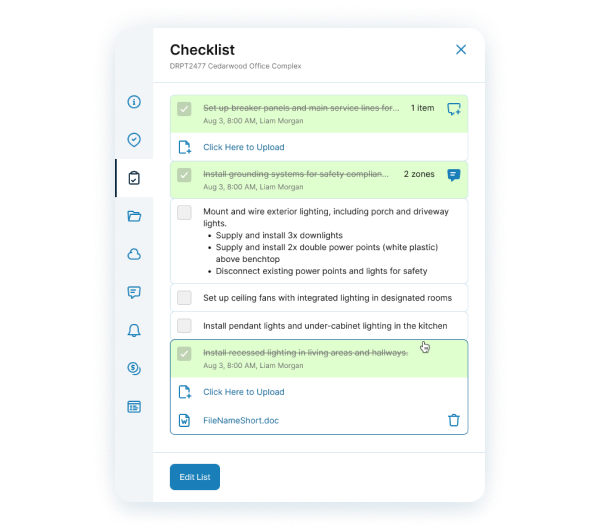
The driver checks in on arrival, with the time recorded, plus photos and GPS if you turn it on. Checklist items can require a photo before they can be ticked.
- Check-in history, newest first
- Every checklist item records who completed it and when
- Customer payments tracked: expected, invoice sent and paid
What supply businesses use most, and how it works

Calendar, Planner and Gantt
Run the week on the calendar with deliveries next to your other work, and see longer jobs on the Planner.
Read the guide
See who's free before you book
Check staff and subcontractors by job type, four weeks ahead, before you promise a date.
Read the guide
Checklists, photo proof and QR check-ins
Require a photo before an item can be ticked, and see everyone who has checked in.
Read the guide
Scope, quotes and variations
Quote from your own catalogues, keep every version, and mark the final one with the signed document attached.
Read the guide
Enquiries that become jobs
Keep each enquiry on one record with its follow-ups, then turn it into the job with nothing retyped.
Read the guide
The right files for the right people
Keep delivery documents on the booking, and contracts and pricing in Sensitive files.
Read the guideSee it working
Short walkthroughs of the real product.
The Calendar
Run the week and move bookings as things change.
The Planner
See your jobs and people on a Gantt chart.
Templates and guides for your next job
Questions supply businesses ask
Can another system create bookings in OpSpot?
Yes. Company API keys let another system read the calendar and create bookings. The integration guide and a Postman collection are in settings.
Can I set up regular deliveries?
Yes. A booking can repeat on chosen weekdays between two dates.
What proof do I get of a delivery?
Each check-in records the time, plus GPS and photos when GPS check-in is on. Checklist items can require a photo before they can be ticked, and each records who completed it and when.
Do customers get told when we're coming?
They can. Booking reminders go by email to the client, in advance or at a set time, using your own templates.
Does it work on a phone?
Yes. OpSpot runs in the browser and installs to your phone's home screen, with a calendar layout built for phones and push notifications.
