


Run recurring visits and urgent repairs in one place
For maintenance and facilities teams. Set up recurring bookings, send crews and subcontractors the right checklist, and keep proof of every visit.
Sound familiar?
"Did anyone go there this week?"
Regular visits live in someone's head or a spreadsheet. A missed one only shows up when the client calls about it.
"Who can get there today?"
An urgent job comes in, and finding someone free means working through your phone contacts one at a time.
"Can you show me it was done?"
The work was done, but the photos and notes are on someone's phone, so answering the client takes half a day.
One job in OpSpot, start to finish
Here's how an example job runs: a 12-month maintenance contract for a commercial building, with weekly visits and the occasional urgent repair.
1. Put the site on one record
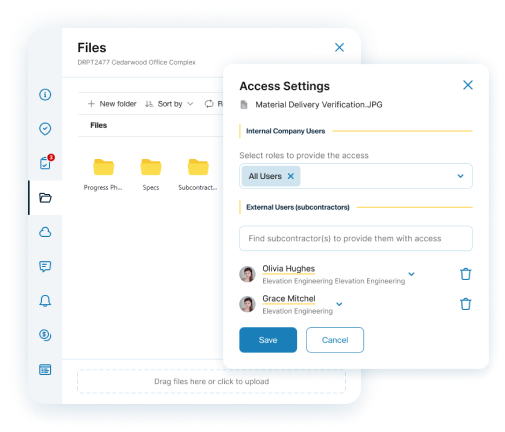
The contract starts with a project for the building: client contacts, site address and job number, with plans and access notes filed in folders.
- Call or email the client and open the address in Maps from the project
- Shareable files for the people on site, Sensitive files for contracts and pricing
- Your own stages and statuses
2. Schedule the recurring visits
Set a booking to repeat on chosen weekdays between two dates, and each visit lands on the calendar with its people, checklist and instructions.
- Recurring bookings on the weekdays you choose
- Checklist templates so each visit gets the same list
- Check-in instructions from your own templates
3. Run the week from the calendar
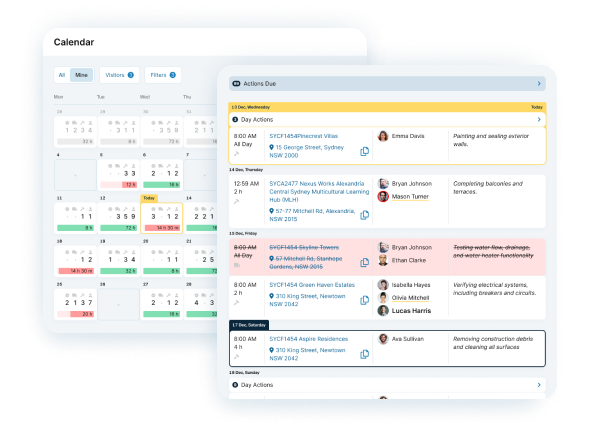
See the week across every site, filter by person, and drag a single-day booking to a new date when plans change.
- Month and week views, all bookings or just yours
- Actions due alongside bookings, with overdue ones flagged
- A layout built for phones
4. Get the urgent job covered
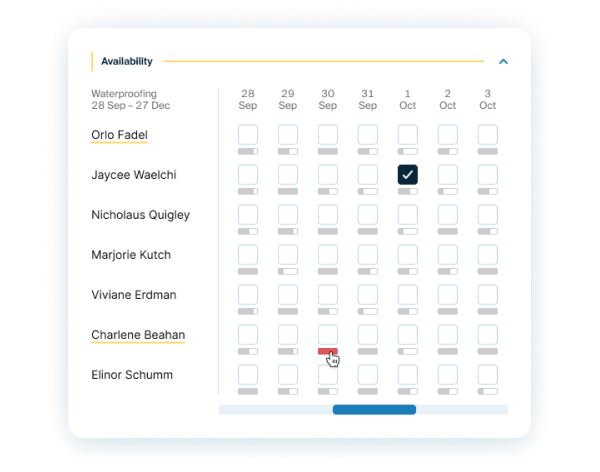
A leak is reported on level three. Choose the job type and see every staff member and subcontractor who does that work, with how full each day already is, then tick the days to add them.
- A load bar for each day, red when nearly full
- Work orders at cost, never your sell price
- Assignees notified, with reminders by email
5. Prove the visit happened
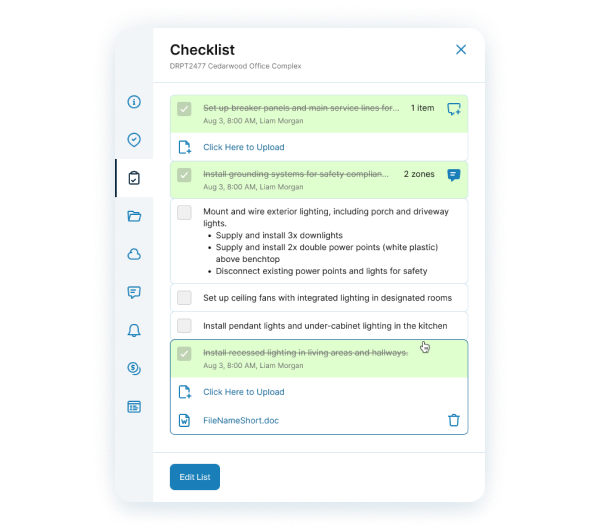
Checklist items can require a photo or file before they can be ticked, and check-ins record when the worker arrived, with GPS if you turn it on.
- Every item records who completed it and when
- A notification when the last item on a booking is ticked
- Photos and comments kept on the job
6. Answer the client from the record
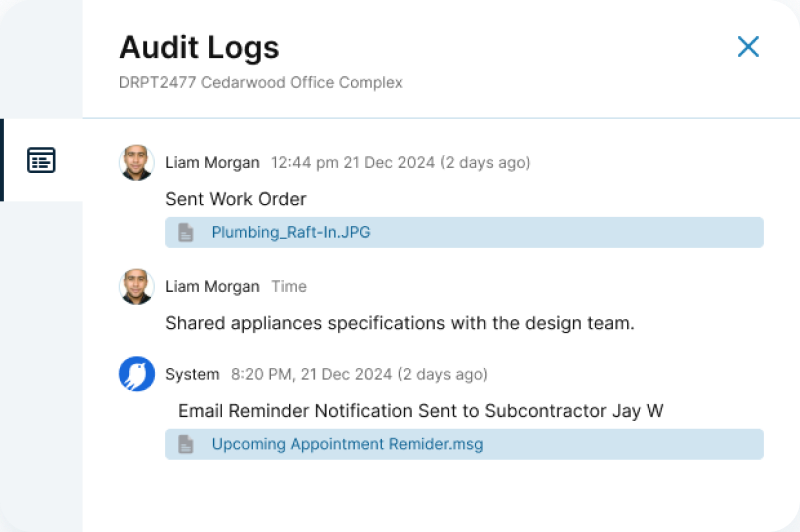
When the client asks what happened on site, the answer is on the project: check-ins, checklists, comments and an audit log of each booking.
- Booking reminders to the client by email
- Audit logs on bookings and project audit records
- Subcontractor payments approved line by line
What maintenance teams use most, and how it works

Calendar, Planner and Gantt
Run the week on the calendar, see longer work on the Planner, and set up bookings that repeat on the days you choose.
Read the guide
See who's free before you book
Check staff and subcontractors by job type, four weeks ahead, before you promise a client a date.
Read the guide
Checklists, photo proof and QR check-ins
Require a photo before an item can be ticked, and see everyone who has checked in on the project.
Read the guide
Work orders and subcontractor payments
Send work orders at cost, then approve completed lines one at a time, so you know what you owe each subcontractor.
Read the guide
Licences and insurance
Set what each job type requires and get a reminder before documents expire.
Read the guide
The right files for the right people
Share site plans with subcontractors on their bookings, and keep contracts and pricing in Sensitive files.
Read the guideSee it working
Short walkthroughs of the real product.
The Calendar
Run the week and move bookings as things change.
The Planner
See your jobs and people on a Gantt chart.
Templates and guides for your next job
Questions maintenance teams ask
Can I set up recurring visits?
Yes. A booking can repeat on chosen weekdays between two dates, with its people, checklist and check-in instructions.
Can I require a photo before a job is marked done?
Yes. Checklist items can require a photo or file before they can be ticked. Each item records who completed it and when.
Do clients get told when we're coming?
They can. Booking reminders go by email to the client, the workers and the project manager, in advance or at a set time, using your own templates.
How do subcontractors join?
Invite them by ABN, manager email or OpSpot ID. Each subcontractor is their own company in OpSpot, with their own team. They accept your invitation and choose which of their people you can see.
Does it work on a phone?
Yes. OpSpot runs in the browser and installs to your phone's home screen, with a calendar layout built for phones and push notifications.
