


Schedule crews and subcontractors across every site
For road maintenance and civil contractors. Plan works by site, book crews and subcontractors, share site instructions and keep photo proof.
Sound familiar?
"Which crew is on which road?"
The program is in a spreadsheet, the changes are in text messages, and the two stopped matching on Tuesday.
"Is that ticket still current?"
Licences and insurance sit in folders and inboxes, so you find out one has expired when someone asks for it.
"Show me it was finished."
Before and after photos are on three phones, and the client wants them with the claim.
One job in OpSpot, start to finish
Here's how an example job runs: a six-week resurfacing program using your own crews and subcontractors.
1. Set up the program
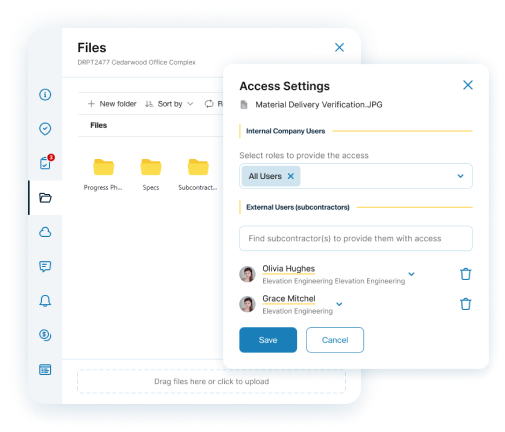
Create a project for each site or stage of works, with the address, project manager, job number and your documents filed in folders, such as traffic plans.
- Your own stages and statuses
- Shareable files for crews, Sensitive files for contracts and pricing
- The Scheduler lists projects by stage, with their bookings by job type
2. Lay out the works
Book each crew in sequence and see the whole program on the Planner. Filter by project, project manager, job type or attendee, and export it to PDF for the client.
- Gantt view across the program
- Multi-day bookings with different people on each day
- A read-only link for the client, with an optional expiry date
3. Book crews and subcontractors
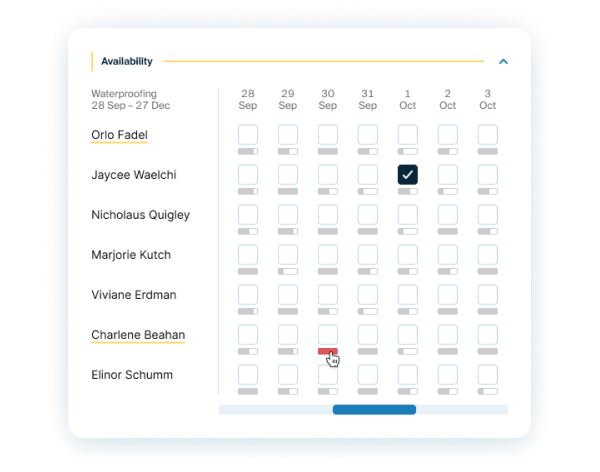
Need a line marking crew for week four? Choose the job type and see every staff member and subcontractor who does that work, four weeks out, with a load bar for each day.
- Required licences and insurance set per job type
- Expiry reminders, 15 days before by default
- Work orders at cost, never your sell price
4. Brief the crew before they start
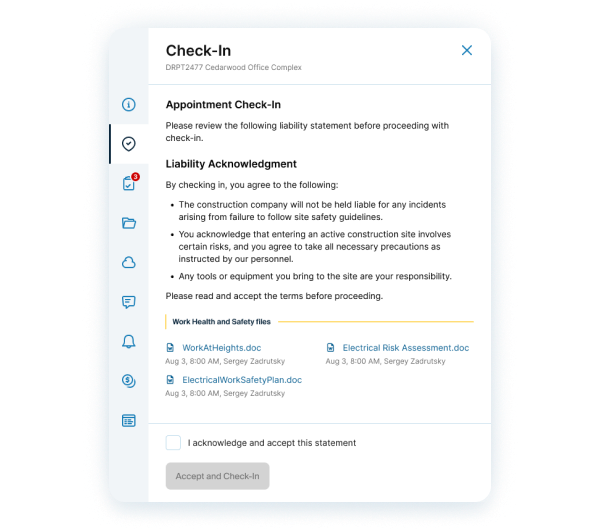
Add your site instructions to the booking. Each worker reads them and accepts when they check in, and your safety files are there on the job.
- Check-in instructions from your own templates
- Acknowledgement recorded at check-in
- Booking files available to the people assigned
5. Know who's on site
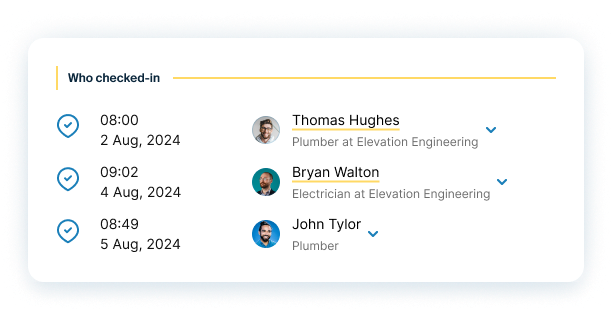
Staff and subcontractors check in as themselves from the project QR code or their booking. Visitors check in as guests with no app or account.
- Time recorded for everyone
- GPS for your crews and subcontractors if you turn it on
- Check-in history for the project, newest first
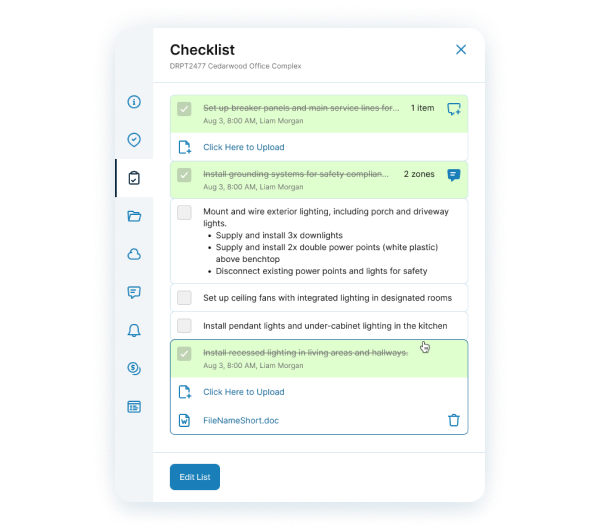
6. Keep the proof and track the money
Checklist items can require a photo before they can be ticked, so before and after shots stay on the job. Then approve what you owe each subcontractor line by line.
- Every item records who completed it and when
- Subcontractor payments: pending, approved, rejected and paid
- Client payments by stage: expected, invoice sent and paid
What crews and contractors use most, and how it works

Calendar, Planner and Gantt
See the whole program on a Gantt chart and run the week from the calendar, with crews and subcontractors together.
Read the guide
See who's free before you book
Check crews and subcontractors by job type, four weeks ahead, with a load bar for each day.
Read the guide
Licences and insurance
Set what each job type requires, see what has expired, and get a reminder before documents run out.
Read the guide
Checklists, photo proof and QR check-ins
Require a photo before an item can be ticked, and see everyone who has checked in on the project.
Read the guide
Work orders and subcontractor payments
Send work orders at cost, then approve completed lines one at a time, so you know what you owe on each job.
Read the guide
The right files for the right people
Share plans with subcontractors on their bookings, and keep contracts and pricing in Sensitive files.
Read the guideSee it working
Short walkthroughs of the real product.
The Planner
See your jobs and crews on a Gantt chart.
The Calendar
Run the week and move bookings as things change.
Templates and guides for your next job
Questions road and civil contractors ask
Can I set which licences and insurance a job type needs?
Yes. You mark which job types need a licence or insurance, and subcontractors see what you require. OpSpot keeps the documents and dates for each person and emails a reminder before they expire, 15 days before by default.
Can different people work on different days of a booking?
Yes. A multi-day booking can have a different set of people for each day, so a crew change doesn't mean a new booking.
Can visitors sign in without an account?
Yes. Visitors scan the project QR code and check in as a guest with their name and mobile. Staff and subcontractors check in as themselves.
Can subcontractors see my margins?
No. Work orders show subcontractors the cost of their work, never your sell price or margin. They only see Shareable files, on bookings they're assigned to.
Does it work on a phone?
Yes. OpSpot runs in the browser and installs to your phone's home screen, with a calendar layout built for phones and push notifications.
